> ## Documentation Index
> Fetch the complete documentation index at: https://docs-dev-feat-init-gt-translations.mintlify.site/llms.txt
> Use this file to discover all available pages before exploring further.

> Forms for Actions を使用して、ユーザーが新しい利用規約または同意に関する更新内容を確認して承諾できるように、更新ポリシーフォームを設定する方法を学びます。

# ユースケース: Forms を使用して更新ポリシーフォームを設定する

<Card title="始める前に">
  1. 次のスコープを有効にして、[Machine-to-Machine Application](/docs/ja-jp/get-started/auth0-overview/create-applications/machine-to-machine-apps) を作成します。

  * `read:users`
  * `update:users`
  * `create:users`
  * `read:users_app_metadata`
  * `update:users_app_metadata`
  * `create:users_app_metadata`

  2. M2M アプリケーションの認証情報を使用して、[Vault 接続](/docs/ja-jp/customize/forms/vault) を追加します。
</Card>

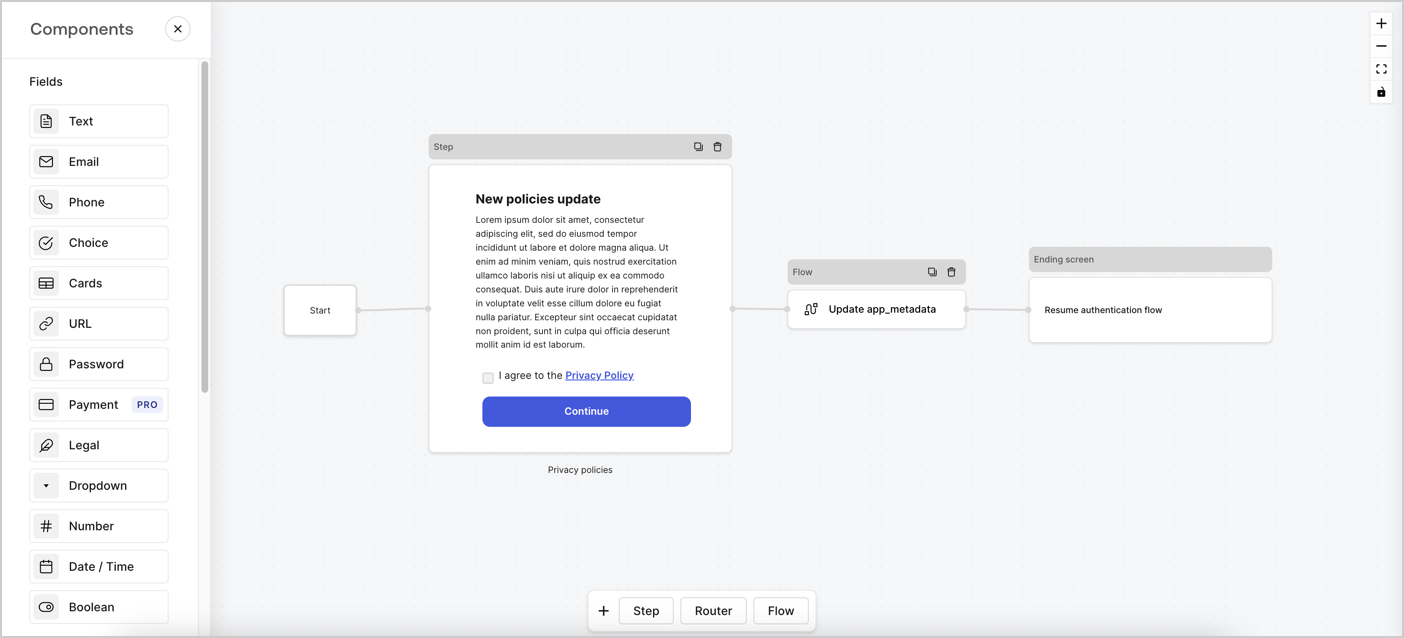
Forms for Actions では、カスタムのプライバシーポリシーフローを作成し、その同意内容を `app_metadata` オブジェクトに保存できます。
<Frame>
  <img src="https://mintcdn.com/docs-dev-feat-init-gt-translations/ga3rC1_4s-OF6Vr-/docs/images/cdy7uua7fh8z/6i68dMvHDTijfRmSgN1x8Q/ad900e7d4c0fb34645921435472b8684/privavy-policy-form.png?fit=max&auto=format&n=ga3rC1_4s-OF6Vr-&q=85&s=80e447f04766c9b07f83c8ba8d8d0cbc" alt="Dashboard > Actions > Forms > Privacy policy use case" data-og-width="1404" width="1404" data-og-height="638" height="638" data-path="docs/images/cdy7uua7fh8z/6i68dMvHDTijfRmSgN1x8Q/ad900e7d4c0fb34645921435472b8684/privavy-policy-form.png" data-optimize="true" data-opv="3" srcset="https://mintcdn.com/docs-dev-feat-init-gt-translations/ga3rC1_4s-OF6Vr-/docs/images/cdy7uua7fh8z/6i68dMvHDTijfRmSgN1x8Q/ad900e7d4c0fb34645921435472b8684/privavy-policy-form.png?w=280&fit=max&auto=format&n=ga3rC1_4s-OF6Vr-&q=85&s=e19a409e9b20f4eeb57d8230bd9d60af 280w, https://mintcdn.com/docs-dev-feat-init-gt-translations/ga3rC1_4s-OF6Vr-/docs/images/cdy7uua7fh8z/6i68dMvHDTijfRmSgN1x8Q/ad900e7d4c0fb34645921435472b8684/privavy-policy-form.png?w=560&fit=max&auto=format&n=ga3rC1_4s-OF6Vr-&q=85&s=846a14811363d97ba72a0cdc3a98a1be 560w, https://mintcdn.com/docs-dev-feat-init-gt-translations/ga3rC1_4s-OF6Vr-/docs/images/cdy7uua7fh8z/6i68dMvHDTijfRmSgN1x8Q/ad900e7d4c0fb34645921435472b8684/privavy-policy-form.png?w=840&fit=max&auto=format&n=ga3rC1_4s-OF6Vr-&q=85&s=1a949c00e021c515a359ff9adc40dda1 840w, https://mintcdn.com/docs-dev-feat-init-gt-translations/ga3rC1_4s-OF6Vr-/docs/images/cdy7uua7fh8z/6i68dMvHDTijfRmSgN1x8Q/ad900e7d4c0fb34645921435472b8684/privavy-policy-form.png?w=1100&fit=max&auto=format&n=ga3rC1_4s-OF6Vr-&q=85&s=8799a7581e162fa2e5ca5afcdea7d603 1100w, https://mintcdn.com/docs-dev-feat-init-gt-translations/ga3rC1_4s-OF6Vr-/docs/images/cdy7uua7fh8z/6i68dMvHDTijfRmSgN1x8Q/ad900e7d4c0fb34645921435472b8684/privavy-policy-form.png?w=1650&fit=max&auto=format&n=ga3rC1_4s-OF6Vr-&q=85&s=8c9ab0bb71be638a0cb27e2c25ca11fc 1650w, https://mintcdn.com/docs-dev-feat-init-gt-translations/ga3rC1_4s-OF6Vr-/docs/images/cdy7uua7fh8z/6i68dMvHDTijfRmSgN1x8Q/ad900e7d4c0fb34645921435472b8684/privavy-policy-form.png?w=2500&fit=max&auto=format&n=ga3rC1_4s-OF6Vr-&q=85&s=3467a4768075a6589a841a5fd6065392 2500w" />
</Frame>

以下のセクションでは、ノードとフローを使用して更新ポリシーフォームを作成する方法と、そのフォームを [Post Login](/docs/ja-jp/customize/actions/explore-triggers/signup-and-login-triggers/login-trigger) Action に追加する手順について説明します。

<div id="create-a-form-from-scratch">
  ## フォームを一から作成する
</div>

情報を収集するためのフォームを作成するには、次の手順に従います。

1. **Auth0 Dashboard > Actions > Forms** を選択して、フォームエディターを開きます。
2. **Create Form** > **Start from scratch** を選択します。

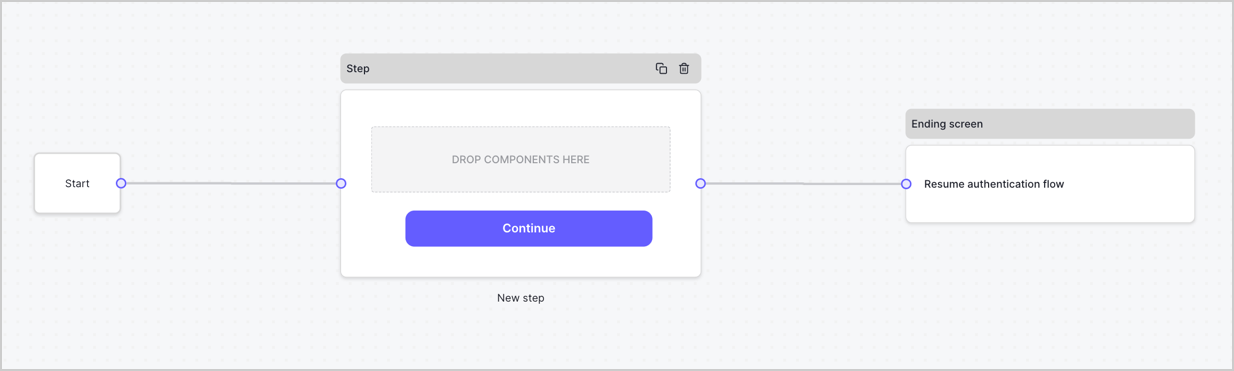
デフォルトでは、新しいフォームには Start ノード、Step ノード、Ending screen ノードが含まれています。
<Frame>
  <img src="https://mintcdn.com/docs-dev-feat-init-gt-translations/AcBWN86l7cA24wcQ/docs/images/cdy7uua7fh8z/2TZ9jSjgEcARFpULI6hz4R/a4319a1bd482f2ee5cc23100fdb2f42c/New-form-Forms-for-action-use-case.png?fit=max&auto=format&n=AcBWN86l7cA24wcQ&q=85&s=6a3bfd381941785615a3a8979f75d48a" alt="Dashboard > Forms > Use Cases > Form" data-og-width="1234" width="1234" data-og-height="371" height="371" data-path="docs/images/cdy7uua7fh8z/2TZ9jSjgEcARFpULI6hz4R/a4319a1bd482f2ee5cc23100fdb2f42c/New-form-Forms-for-action-use-case.png" data-optimize="true" data-opv="3" srcset="https://mintcdn.com/docs-dev-feat-init-gt-translations/AcBWN86l7cA24wcQ/docs/images/cdy7uua7fh8z/2TZ9jSjgEcARFpULI6hz4R/a4319a1bd482f2ee5cc23100fdb2f42c/New-form-Forms-for-action-use-case.png?w=280&fit=max&auto=format&n=AcBWN86l7cA24wcQ&q=85&s=bf0f92d94110edb4b874b91bb0e98464 280w, https://mintcdn.com/docs-dev-feat-init-gt-translations/AcBWN86l7cA24wcQ/docs/images/cdy7uua7fh8z/2TZ9jSjgEcARFpULI6hz4R/a4319a1bd482f2ee5cc23100fdb2f42c/New-form-Forms-for-action-use-case.png?w=560&fit=max&auto=format&n=AcBWN86l7cA24wcQ&q=85&s=2e1e0de292431110508a0cc9e342d6e2 560w, https://mintcdn.com/docs-dev-feat-init-gt-translations/AcBWN86l7cA24wcQ/docs/images/cdy7uua7fh8z/2TZ9jSjgEcARFpULI6hz4R/a4319a1bd482f2ee5cc23100fdb2f42c/New-form-Forms-for-action-use-case.png?w=840&fit=max&auto=format&n=AcBWN86l7cA24wcQ&q=85&s=230f131d16869cbde79b8598f5398e4c 840w, https://mintcdn.com/docs-dev-feat-init-gt-translations/AcBWN86l7cA24wcQ/docs/images/cdy7uua7fh8z/2TZ9jSjgEcARFpULI6hz4R/a4319a1bd482f2ee5cc23100fdb2f42c/New-form-Forms-for-action-use-case.png?w=1100&fit=max&auto=format&n=AcBWN86l7cA24wcQ&q=85&s=2eddce68293a63c174f95bd37418f105 1100w, https://mintcdn.com/docs-dev-feat-init-gt-translations/AcBWN86l7cA24wcQ/docs/images/cdy7uua7fh8z/2TZ9jSjgEcARFpULI6hz4R/a4319a1bd482f2ee5cc23100fdb2f42c/New-form-Forms-for-action-use-case.png?w=1650&fit=max&auto=format&n=AcBWN86l7cA24wcQ&q=85&s=50b62c46a234d62898f69d216e505578 1650w, https://mintcdn.com/docs-dev-feat-init-gt-translations/AcBWN86l7cA24wcQ/docs/images/cdy7uua7fh8z/2TZ9jSjgEcARFpULI6hz4R/a4319a1bd482f2ee5cc23100fdb2f42c/New-form-Forms-for-action-use-case.png?w=2500&fit=max&auto=format&n=AcBWN86l7cA24wcQ&q=85&s=1578043a5a0255d5f41140f905b00afa 2500w" />
</Frame>

<div id="configure-the-step-node">
  ### Step ノードを設定する
</div>

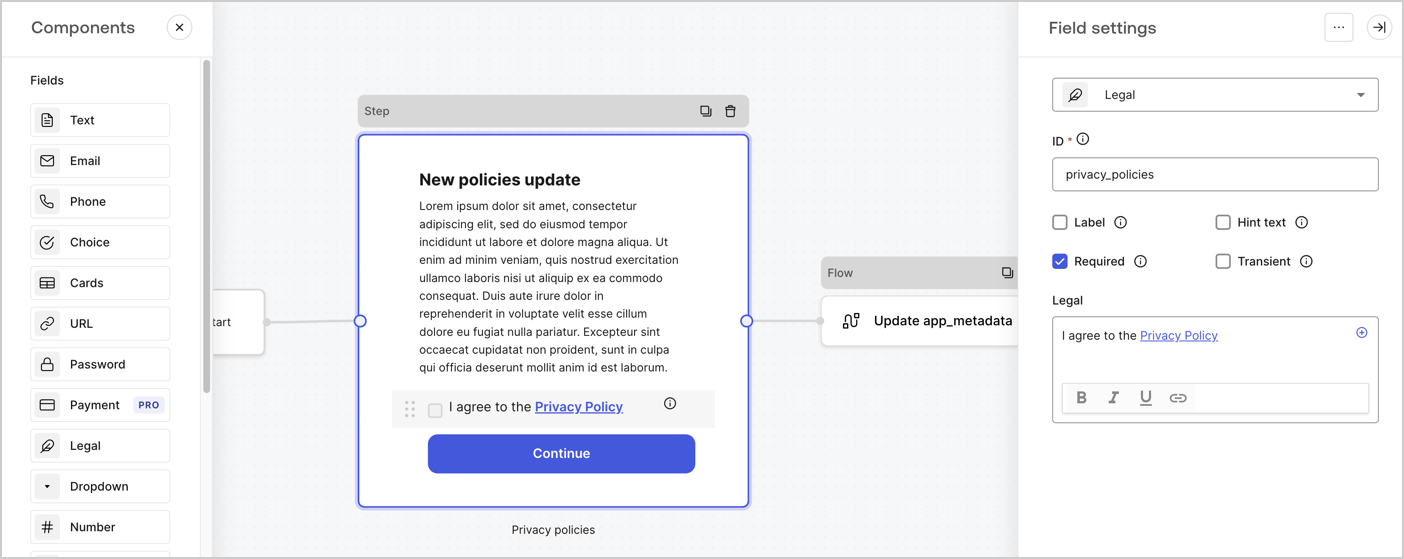
Step ノードは、ユーザーに表示されるグラフィカルインターフェースです。次の手順で、新しい同意の承諾値を収集するための [Fields](/docs/ja-jp/customize/forms/nodes-and-components) を Step ノードに追加します。

1. **Components menu** から **Rich text** フィールドを **Step** ノードにドラッグします。

   * **Rich text**: プライバシーポリシーの更新内容に関する説明を入力します。
   * **Save** を選択します。
2. **Legal** フィールドを **Step** ノードにドラッグします。

   * **ID**: `privacy_policies` と入力します。
   * **Required**: チェックボックスをオンにします。
   * **Legal**: `I agree to the Privacy Policy` と入力します。
   * **Save** を選択します。
3. 保存するには **Publish** を選択します。
<Frame>
  <img src="https://mintcdn.com/docs-dev-feat-init-gt-translations/pK24zKWLhA0dvqKX/docs/images/cdy7uua7fh8z/59zFFjQjAnjogkc2QGIqqJ/0ad66b1b636544122aa4e65968b76c2c/privacy-policy-step-node.png?fit=max&auto=format&n=pK24zKWLhA0dvqKX&q=85&s=47cdec8803d7bb200282f605eb8cc23c" alt="Dashboard > Actions > Forms > プライバシーポリシーのユースケースの Step ノード" data-og-width="1404" width="1404" data-og-height="559" height="559" data-path="docs/images/cdy7uua7fh8z/59zFFjQjAnjogkc2QGIqqJ/0ad66b1b636544122aa4e65968b76c2c/privacy-policy-step-node.png" data-optimize="true" data-opv="3" srcset="https://mintcdn.com/docs-dev-feat-init-gt-translations/pK24zKWLhA0dvqKX/docs/images/cdy7uua7fh8z/59zFFjQjAnjogkc2QGIqqJ/0ad66b1b636544122aa4e65968b76c2c/privacy-policy-step-node.png?w=280&fit=max&auto=format&n=pK24zKWLhA0dvqKX&q=85&s=bb576b0e3ae2fbc1d9416fc8112ebe4e 280w, https://mintcdn.com/docs-dev-feat-init-gt-translations/pK24zKWLhA0dvqKX/docs/images/cdy7uua7fh8z/59zFFjQjAnjogkc2QGIqqJ/0ad66b1b636544122aa4e65968b76c2c/privacy-policy-step-node.png?w=560&fit=max&auto=format&n=pK24zKWLhA0dvqKX&q=85&s=426ef5e0cf784388ccebed6e3662dd92 560w, https://mintcdn.com/docs-dev-feat-init-gt-translations/pK24zKWLhA0dvqKX/docs/images/cdy7uua7fh8z/59zFFjQjAnjogkc2QGIqqJ/0ad66b1b636544122aa4e65968b76c2c/privacy-policy-step-node.png?w=840&fit=max&auto=format&n=pK24zKWLhA0dvqKX&q=85&s=e59576575733cb992ca213d52c571048 840w, https://mintcdn.com/docs-dev-feat-init-gt-translations/pK24zKWLhA0dvqKX/docs/images/cdy7uua7fh8z/59zFFjQjAnjogkc2QGIqqJ/0ad66b1b636544122aa4e65968b76c2c/privacy-policy-step-node.png?w=1100&fit=max&auto=format&n=pK24zKWLhA0dvqKX&q=85&s=2c5923733b1649b535c8a148024278e7 1100w, https://mintcdn.com/docs-dev-feat-init-gt-translations/pK24zKWLhA0dvqKX/docs/images/cdy7uua7fh8z/59zFFjQjAnjogkc2QGIqqJ/0ad66b1b636544122aa4e65968b76c2c/privacy-policy-step-node.png?w=1650&fit=max&auto=format&n=pK24zKWLhA0dvqKX&q=85&s=f71aadf5b1c8f637fd2ee1bf7ac47eb2 1650w, https://mintcdn.com/docs-dev-feat-init-gt-translations/pK24zKWLhA0dvqKX/docs/images/cdy7uua7fh8z/59zFFjQjAnjogkc2QGIqqJ/0ad66b1b636544122aa4e65968b76c2c/privacy-policy-step-node.png?w=2500&fit=max&auto=format&n=pK24zKWLhA0dvqKX&q=85&s=7bb495b25930bbbd4af64b0e7240df39 2500w" />
</Frame>

<div id="configure-the-flow-node">
  ### Flow ノードを設定する
</div>

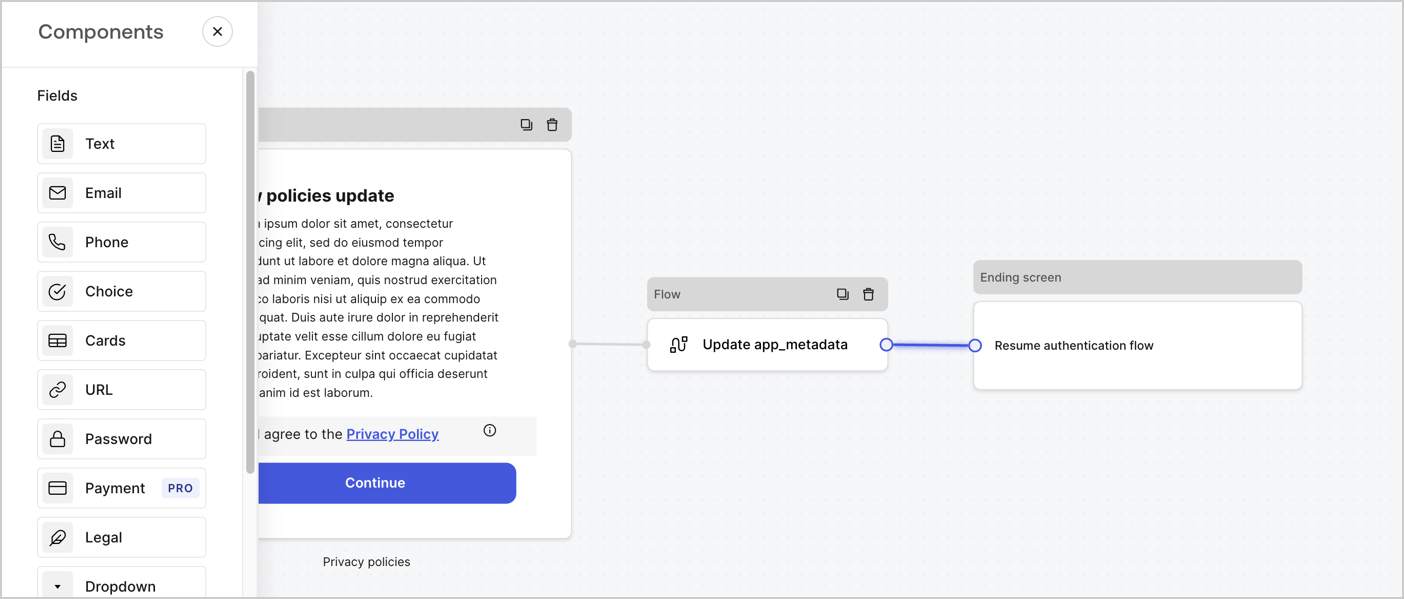
次の手順に従って、**Step** ノードの後に **Flow** ノードを追加し、`app_metadata` を更新して認証フローを再開します。

1. フォームエディターの下部で **Flow** を選択します。
2. **Step** ノードと **Ending Screen** ノードの間にある既存のリンクを削除します。
3. 新しい **Flow** > **Click to add a flow** > **Create a new flow.** を選択します。

   * **Name** フィールドに `Update app_metadata` と入力します。
   * **Create** を選択します。
   * **Save** を選択します。
4. 下図のように、**Flow** ノードを **Step** ノードと **Ending Screen** ノードにリンクします。
5. 保存するには **Publish** を選択します。
<Frame>
  <img src="https://mintcdn.com/docs-dev-feat-init-gt-translations/ga3rC1_4s-OF6Vr-/docs/images/cdy7uua7fh8z/6YIkzm7SrpM9LW76AXuRzh/353c518fe82bbaa440836da1d83596d6/link-policies.png?fit=max&auto=format&n=ga3rC1_4s-OF6Vr-&q=85&s=a49942272cb50a8089e0d8a77c38d1d0" alt="Dashboard > Actions > Forms > Form" data-og-width="1404" width="1404" data-og-height="599" height="599" data-path="docs/images/cdy7uua7fh8z/6YIkzm7SrpM9LW76AXuRzh/353c518fe82bbaa440836da1d83596d6/link-policies.png" data-optimize="true" data-opv="3" srcset="https://mintcdn.com/docs-dev-feat-init-gt-translations/ga3rC1_4s-OF6Vr-/docs/images/cdy7uua7fh8z/6YIkzm7SrpM9LW76AXuRzh/353c518fe82bbaa440836da1d83596d6/link-policies.png?w=280&fit=max&auto=format&n=ga3rC1_4s-OF6Vr-&q=85&s=758072fedbf6a107b003305eafd53f51 280w, https://mintcdn.com/docs-dev-feat-init-gt-translations/ga3rC1_4s-OF6Vr-/docs/images/cdy7uua7fh8z/6YIkzm7SrpM9LW76AXuRzh/353c518fe82bbaa440836da1d83596d6/link-policies.png?w=560&fit=max&auto=format&n=ga3rC1_4s-OF6Vr-&q=85&s=765e344f8693df49dff6be8cacc34f22 560w, https://mintcdn.com/docs-dev-feat-init-gt-translations/ga3rC1_4s-OF6Vr-/docs/images/cdy7uua7fh8z/6YIkzm7SrpM9LW76AXuRzh/353c518fe82bbaa440836da1d83596d6/link-policies.png?w=840&fit=max&auto=format&n=ga3rC1_4s-OF6Vr-&q=85&s=64cb05af2eade4b8e050cf5b03b6be6c 840w, https://mintcdn.com/docs-dev-feat-init-gt-translations/ga3rC1_4s-OF6Vr-/docs/images/cdy7uua7fh8z/6YIkzm7SrpM9LW76AXuRzh/353c518fe82bbaa440836da1d83596d6/link-policies.png?w=1100&fit=max&auto=format&n=ga3rC1_4s-OF6Vr-&q=85&s=0ffed8778d6491db098102b122f69b58 1100w, https://mintcdn.com/docs-dev-feat-init-gt-translations/ga3rC1_4s-OF6Vr-/docs/images/cdy7uua7fh8z/6YIkzm7SrpM9LW76AXuRzh/353c518fe82bbaa440836da1d83596d6/link-policies.png?w=1650&fit=max&auto=format&n=ga3rC1_4s-OF6Vr-&q=85&s=ef378032e91d51a706193da338e15d39 1650w, https://mintcdn.com/docs-dev-feat-init-gt-translations/ga3rC1_4s-OF6Vr-/docs/images/cdy7uua7fh8z/6YIkzm7SrpM9LW76AXuRzh/353c518fe82bbaa440836da1d83596d6/link-policies.png?w=2500&fit=max&auto=format&n=ga3rC1_4s-OF6Vr-&q=85&s=52dbbb81471770f7f9ef44ee6882d437 2500w" />
</Frame>

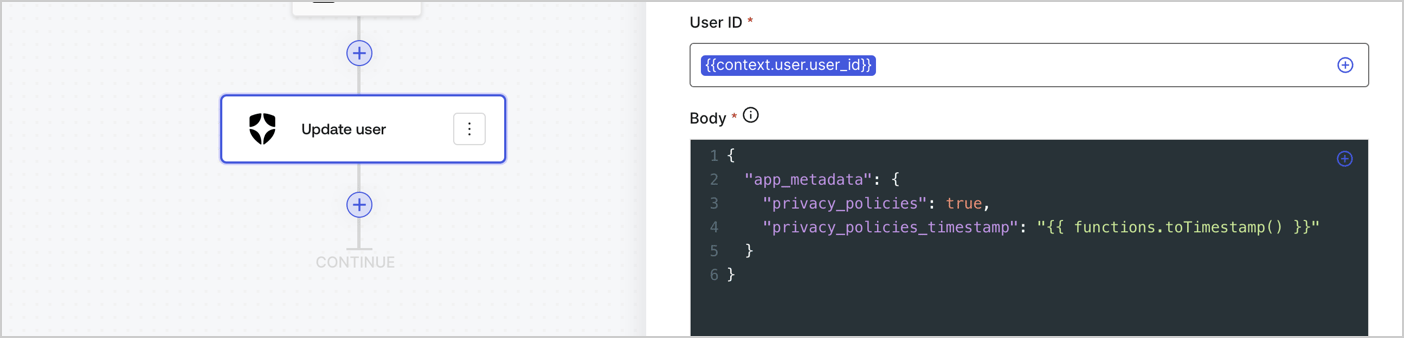
次の手順に従って、フローに Auth0 の Update user アクションを追加します。

1. **Flow** **Update app\_metadata** > **Edit flow** を選択し、新しいタブで Flow エディターを開きます。
2. StartAction の下にある **+** アイコンを選択して **Update user** アクションを追加します。以下のフィールドに入力し、**Save** を選択して続行します。

   * **Connection**: ドロップダウンから、M2M アプリケーション用の Vault 接続を選択します。

   * **User ID**: `{{context.user.user_id}}` と入力します。

   * **Body**: 次のコードをコピー＆ペーストして、privacy\_policies プロパティと privacy\_policies\_timestamp プロパティで app\_metadata を更新します。

     ```text lines theme={null}
     {
       "app_metadata": {
         "privacy_policies": true,
         "privacy_policies_timestamp": "{{ functions.toTimestamp() }}"
       }
     }
     ```

   * **Save** を選択します。
3. 保存するには **Publish** を選択します。
<Frame>
  <img src="https://mintcdn.com/docs-dev-feat-init-gt-translations/ZmqODkbyV9Q5Sot2/docs/images/cdy7uua7fh8z/CvMNIwWrOUwaFW4X3G28p/1fb70ae57a20749d9ffaaba8dc0b7e26/update-user-privacy.png?fit=max&auto=format&n=ZmqODkbyV9Q5Sot2&q=85&s=c5c5db013960681c21083ea8988aa32e" alt="Dashboard > Actions > Forms > User case privacy policy code" data-og-width="1404" width="1404" data-og-height="338" height="338" data-path="docs/images/cdy7uua7fh8z/CvMNIwWrOUwaFW4X3G28p/1fb70ae57a20749d9ffaaba8dc0b7e26/update-user-privacy.png" data-optimize="true" data-opv="3" srcset="https://mintcdn.com/docs-dev-feat-init-gt-translations/ZmqODkbyV9Q5Sot2/docs/images/cdy7uua7fh8z/CvMNIwWrOUwaFW4X3G28p/1fb70ae57a20749d9ffaaba8dc0b7e26/update-user-privacy.png?w=280&fit=max&auto=format&n=ZmqODkbyV9Q5Sot2&q=85&s=b69bfc4909b22e2cb1c50283a7fb8d70 280w, https://mintcdn.com/docs-dev-feat-init-gt-translations/ZmqODkbyV9Q5Sot2/docs/images/cdy7uua7fh8z/CvMNIwWrOUwaFW4X3G28p/1fb70ae57a20749d9ffaaba8dc0b7e26/update-user-privacy.png?w=560&fit=max&auto=format&n=ZmqODkbyV9Q5Sot2&q=85&s=ce00ba5f79d48c2930f48d4041063e06 560w, https://mintcdn.com/docs-dev-feat-init-gt-translations/ZmqODkbyV9Q5Sot2/docs/images/cdy7uua7fh8z/CvMNIwWrOUwaFW4X3G28p/1fb70ae57a20749d9ffaaba8dc0b7e26/update-user-privacy.png?w=840&fit=max&auto=format&n=ZmqODkbyV9Q5Sot2&q=85&s=eab75289906d17de49e2df3dfafa5957 840w, https://mintcdn.com/docs-dev-feat-init-gt-translations/ZmqODkbyV9Q5Sot2/docs/images/cdy7uua7fh8z/CvMNIwWrOUwaFW4X3G28p/1fb70ae57a20749d9ffaaba8dc0b7e26/update-user-privacy.png?w=1100&fit=max&auto=format&n=ZmqODkbyV9Q5Sot2&q=85&s=3569e5f81f2b3c65a9822a84428bfc9d 1100w, https://mintcdn.com/docs-dev-feat-init-gt-translations/ZmqODkbyV9Q5Sot2/docs/images/cdy7uua7fh8z/CvMNIwWrOUwaFW4X3G28p/1fb70ae57a20749d9ffaaba8dc0b7e26/update-user-privacy.png?w=1650&fit=max&auto=format&n=ZmqODkbyV9Q5Sot2&q=85&s=eb154544315f63a0f4e117caebbd5a7f 1650w, https://mintcdn.com/docs-dev-feat-init-gt-translations/ZmqODkbyV9Q5Sot2/docs/images/cdy7uua7fh8z/CvMNIwWrOUwaFW4X3G28p/1fb70ae57a20749d9ffaaba8dc0b7e26/update-user-privacy.png?w=2500&fit=max&auto=format&n=ZmqODkbyV9Q5Sot2&q=85&s=c384496b9f1ad4714df8dfc718fc87fe 2500w" />
</Frame>

<Callout icon="file-lines" color="#0EA5E9" iconType="regular">
  フロー **Update app\_metadata** では、app`_metadata` オブジェクトに `privacy_policies: true` を追加し、さらに [helper function.](/docs/ja-jp/customize/forms/variables) を使ってタイムスタンプを生成します。
</Callout>

<div id="retrieve-the-form-render-code">
  ## フォームのレンダリングコードを取得する
</div>

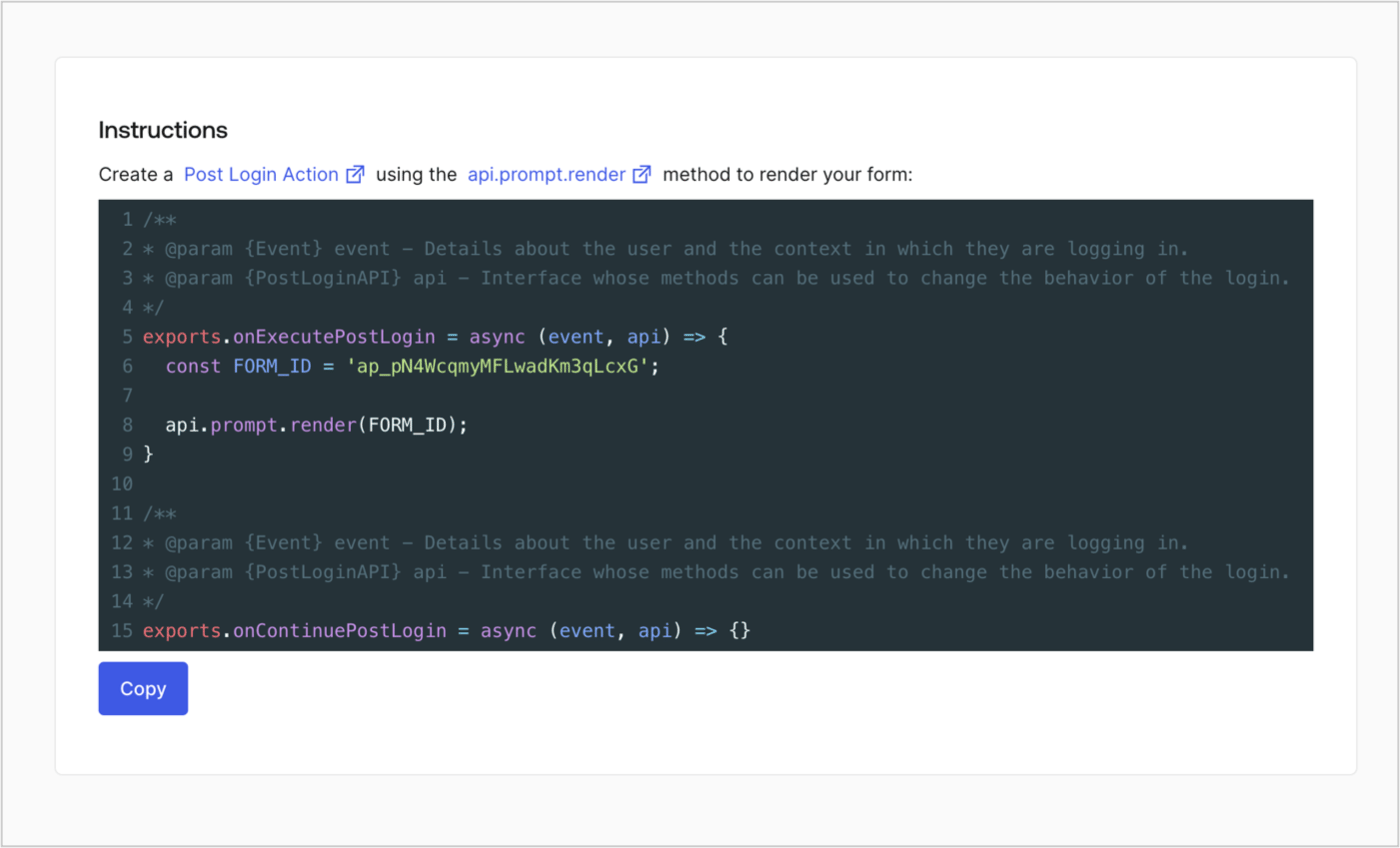
以下の手順に従って、カスタムの Post Login Action でフォームを表示するためのレンダリングコードを取得します。

* フォームエディターで、**`<> Render`** を選択します。
* **Copy** を選択します。
<Frame>
  <img src="https://mintcdn.com/docs-dev-feat-init-gt-translations/2ut5cR-lHY2UVI81/docs/images/cdy7uua7fh8z/2EIUzc539sq9lwoTKbjoJv/496a864c0fc44a782c9cadca119dbfb0/embed.png?fit=max&auto=format&n=2ut5cR-lHY2UVI81&q=85&s=c58280f0219735500bc5aa06b7a486f8" alt="Dashboard > Actions > Forms > Form > Embed" data-og-width="1400" width="1400" data-og-height="848" height="848" data-path="docs/images/cdy7uua7fh8z/2EIUzc539sq9lwoTKbjoJv/496a864c0fc44a782c9cadca119dbfb0/embed.png" data-optimize="true" data-opv="3" srcset="https://mintcdn.com/docs-dev-feat-init-gt-translations/2ut5cR-lHY2UVI81/docs/images/cdy7uua7fh8z/2EIUzc539sq9lwoTKbjoJv/496a864c0fc44a782c9cadca119dbfb0/embed.png?w=280&fit=max&auto=format&n=2ut5cR-lHY2UVI81&q=85&s=fc9bde66ccd8faca3250e0732d6b5248 280w, https://mintcdn.com/docs-dev-feat-init-gt-translations/2ut5cR-lHY2UVI81/docs/images/cdy7uua7fh8z/2EIUzc539sq9lwoTKbjoJv/496a864c0fc44a782c9cadca119dbfb0/embed.png?w=560&fit=max&auto=format&n=2ut5cR-lHY2UVI81&q=85&s=dc43ebccfce206094e2a59c90b1a46d1 560w, https://mintcdn.com/docs-dev-feat-init-gt-translations/2ut5cR-lHY2UVI81/docs/images/cdy7uua7fh8z/2EIUzc539sq9lwoTKbjoJv/496a864c0fc44a782c9cadca119dbfb0/embed.png?w=840&fit=max&auto=format&n=2ut5cR-lHY2UVI81&q=85&s=82ff98862cec1dbe8651f5e468315021 840w, https://mintcdn.com/docs-dev-feat-init-gt-translations/2ut5cR-lHY2UVI81/docs/images/cdy7uua7fh8z/2EIUzc539sq9lwoTKbjoJv/496a864c0fc44a782c9cadca119dbfb0/embed.png?w=1100&fit=max&auto=format&n=2ut5cR-lHY2UVI81&q=85&s=b474d89dfb7de3146e6251280d44b49c 1100w, https://mintcdn.com/docs-dev-feat-init-gt-translations/2ut5cR-lHY2UVI81/docs/images/cdy7uua7fh8z/2EIUzc539sq9lwoTKbjoJv/496a864c0fc44a782c9cadca119dbfb0/embed.png?w=1650&fit=max&auto=format&n=2ut5cR-lHY2UVI81&q=85&s=08659d93e88824f29d1f4664409fb587 1650w, https://mintcdn.com/docs-dev-feat-init-gt-translations/2ut5cR-lHY2UVI81/docs/images/cdy7uua7fh8z/2EIUzc539sq9lwoTKbjoJv/496a864c0fc44a782c9cadca119dbfb0/embed.png?w=2500&fit=max&auto=format&n=2ut5cR-lHY2UVI81&q=85&s=4f15acc7d76240608f9ac651944a264f 2500w" />
</Frame>

<div id="create-a-post-login-action">
  ## Post Login Action を作成する
</div>

次の手順に従って、フォームを表示する post-login Action を作成します。

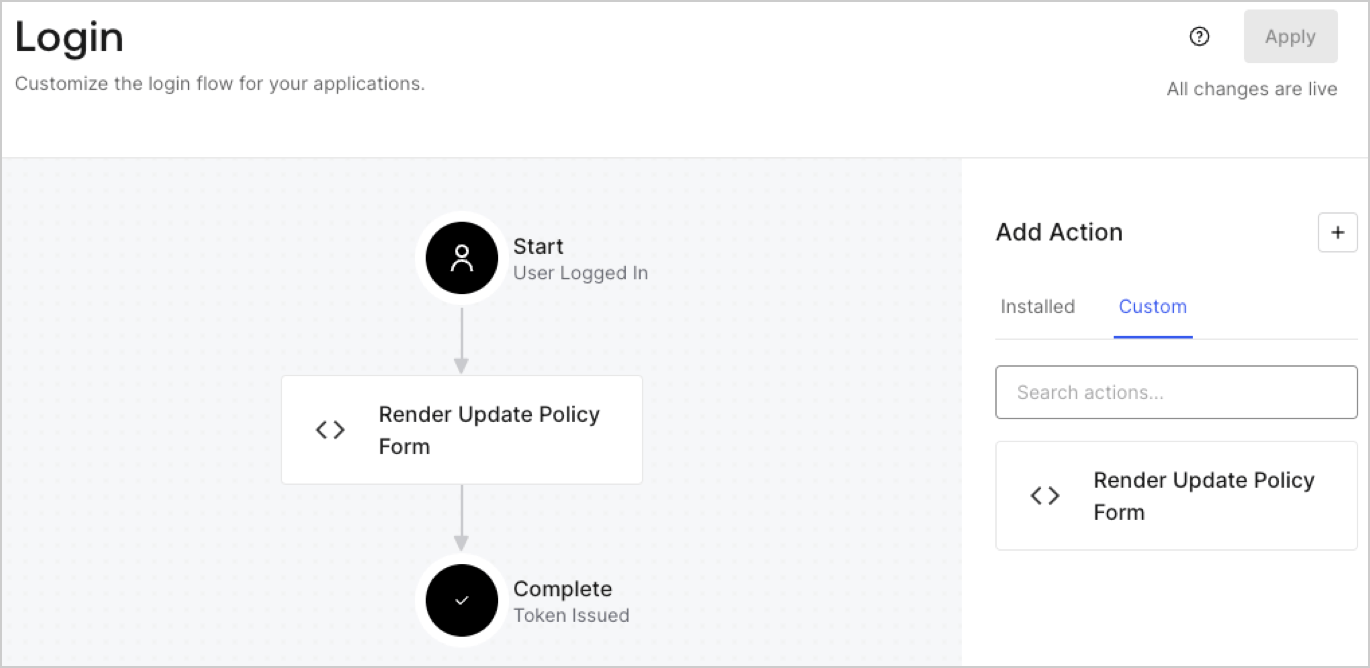
1. **Auth0 Dashboard > Actions > Flows > Login** に移動します。
2. **+** アイコンを選択し、**Build from scratch** を選択します。

   * **Name**: `Render Update Policy Form` と入力します。
   * **Trigger**: `Login / Post Login` を選択します。
   * **Runtime**: 推奨バージョンを選択します。
3. **Create** を選択します。

post-login Action を設定するには、次の手順を実行します。

1. Code editor 内の既存のコードを削除します。
2. フォームを表示するコードを Code editor に貼り付けます。
3. フォームを表示するための条件ロジックを定義するよう、コードを編集します。

   ```javascript lines theme={null}
   /**
   * @param {Event} event - ユーザーと、そのユーザーがログインしているコンテキストに関する詳細。
   * @param {PostLoginAPI} api - ログインの動作を変更するためにメソッドを使用できるインターフェース。
   */
   exports.onExecutePostLogin = async (event, api) => {
     const FORM_ID = 'REPLACE_WITH_YOUR_FORM_ID';

     if (event.user.app_metadata.privacy_policies !== true) {
       api.prompt.render(FORM_ID);
     }
   }

   exports.onContinuePostLogin = async (event, api) => { }
   ```

   <Callout icon="file-lines" color="#0EA5E9" iconType="regular">
     上記のコード例では、ユーザーの app metadata に `privacy_policies` プロパティがない場合、フォームが表示されます。
   </Callout>
4. **Deploy** を選択します。
5. **Render Update Policy Form** Action を **Login** フローにドラッグ＆ドロップします。

   <Frame>
     <img src="https://mintcdn.com/docs-dev-feat-init-gt-translations/ZC0XT2ZcfW-tPJd_/docs/images/cdy7uua7fh8z/5TOwDgevZsBqd7yZynUYWU/41ca909dc3007aed4f40ff794a05efa5/postlogin.png?fit=max&auto=format&n=ZC0XT2ZcfW-tPJd_&q=85&s=c4019459f2b6147b47baf97e736869e8" alt="Dashboard > Forms > Use Case > Render update policy form login action" data-og-width="1370" width="1370" data-og-height="668" height="668" data-path="docs/images/cdy7uua7fh8z/5TOwDgevZsBqd7yZynUYWU/41ca909dc3007aed4f40ff794a05efa5/postlogin.png" data-optimize="true" data-opv="3" srcset="https://mintcdn.com/docs-dev-feat-init-gt-translations/ZC0XT2ZcfW-tPJd_/docs/images/cdy7uua7fh8z/5TOwDgevZsBqd7yZynUYWU/41ca909dc3007aed4f40ff794a05efa5/postlogin.png?w=280&fit=max&auto=format&n=ZC0XT2ZcfW-tPJd_&q=85&s=2cabfb376b9a706a7d83cc93eabedf96 280w, https://mintcdn.com/docs-dev-feat-init-gt-translations/ZC0XT2ZcfW-tPJd_/docs/images/cdy7uua7fh8z/5TOwDgevZsBqd7yZynUYWU/41ca909dc3007aed4f40ff794a05efa5/postlogin.png?w=560&fit=max&auto=format&n=ZC0XT2ZcfW-tPJd_&q=85&s=017010eff3cf549c02b634fe6a5263f7 560w, https://mintcdn.com/docs-dev-feat-init-gt-translations/ZC0XT2ZcfW-tPJd_/docs/images/cdy7uua7fh8z/5TOwDgevZsBqd7yZynUYWU/41ca909dc3007aed4f40ff794a05efa5/postlogin.png?w=840&fit=max&auto=format&n=ZC0XT2ZcfW-tPJd_&q=85&s=112ba3c40170813e925cec01e7ed37b2 840w, https://mintcdn.com/docs-dev-feat-init-gt-translations/ZC0XT2ZcfW-tPJd_/docs/images/cdy7uua7fh8z/5TOwDgevZsBqd7yZynUYWU/41ca909dc3007aed4f40ff794a05efa5/postlogin.png?w=1100&fit=max&auto=format&n=ZC0XT2ZcfW-tPJd_&q=85&s=11bec0fdb8f64018c6493cdab9d93665 1100w, https://mintcdn.com/docs-dev-feat-init-gt-translations/ZC0XT2ZcfW-tPJd_/docs/images/cdy7uua7fh8z/5TOwDgevZsBqd7yZynUYWU/41ca909dc3007aed4f40ff794a05efa5/postlogin.png?w=1650&fit=max&auto=format&n=ZC0XT2ZcfW-tPJd_&q=85&s=93d1be60763a27659e4f8306b1da0cfd 1650w, https://mintcdn.com/docs-dev-feat-init-gt-translations/ZC0XT2ZcfW-tPJd_/docs/images/cdy7uua7fh8z/5TOwDgevZsBqd7yZynUYWU/41ca909dc3007aed4f40ff794a05efa5/postlogin.png?w=2500&fit=max&auto=format&n=ZC0XT2ZcfW-tPJd_&q=85&s=a45f9587cf36f5ede29b474493997fda 2500w" />
   </Frame>
6. **Apply** を選択します。

<div id="test-implementation">
  ### 実装をテストする
</div>

次の手順に従って、実装をテストします。

1. `app_metadata` 属性の `privacy_policies` に値が設定されていない既存ユーザーでログインします。
2. Login フロー の post-login Action によってフォームが表示され、同意を求めるプロンプトが表示されます。
3. **Auth0 Dashboard > User Management > Users** を選択し、該当するユーザーを見つけて、`app_metadata` 属性の `privacy_policies` に `true` の値とタイムスタンプが含まれていることを確認します。