> ## Documentation Index
> Fetch the complete documentation index at: https://docs-dev-feat-init-gt-translations.mintlify.site/llms.txt
> Use this file to discover all available pages before exploring further.

> Forms for Actions を使用して、追加のサインアップ手順を設定する方法を学びます

# ユースケース: Forms を使用した追加のサインアップ手順の設定

<Card title="始める前に">
  1. 次のスコープを有効にして、[Machine-to-Machine Application](/docs/ja-jp/get-started/auth0-overview/create-applications/machine-to-machine-apps) を作成します。

  * `read:users`
  * `update:users`
  * `create:users`
  * `read:users_app_metadata`
  * `update:users_app_metadata`
  * `create:users_app_metadata`

  2. M2M アプリケーションの認証情報を使用して、[Vault 接続](/docs/ja-jp/customize/forms/vault) を追加します。
</Card>

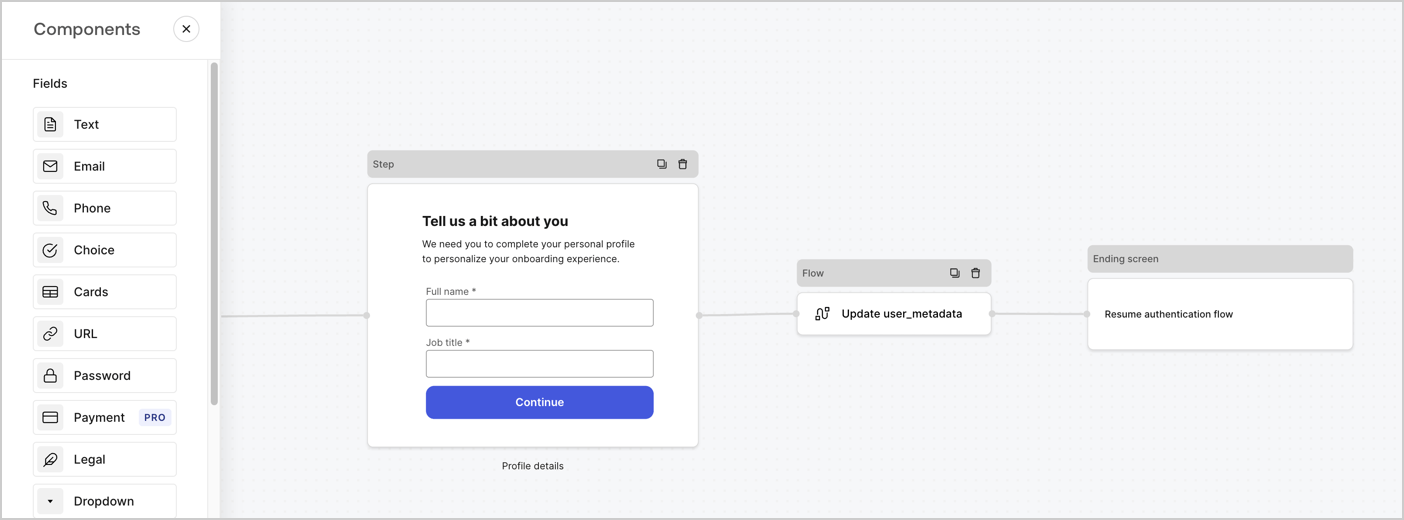
Forms for Actions を使用すると、サインアップフローやログインフローに追加のステップを作成し、ユーザーがアプリケーションにアクセスする前にそれらを必須にできます。
<Frame>
  <img src="https://mintcdn.com/docs-dev-feat-init-gt-translations/2eg7X7TgyYFJUdNP/docs/images/cdy7uua7fh8z/ZOQNi6SrEC9OREcBbdiJ3/d79f84fb61acd5473bdf932527e26d58/custom-signup-form.png?fit=max&auto=format&n=2eg7X7TgyYFJUdNP&q=85&s=d29ff5794fb4a29ba7cb484b277192c3" alt="Dashboard > Actions > Forms > ユースケース: カスタムサインアップフォーム" data-og-width="1404" width="1404" data-og-height="520" height="520" data-path="docs/images/cdy7uua7fh8z/ZOQNi6SrEC9OREcBbdiJ3/d79f84fb61acd5473bdf932527e26d58/custom-signup-form.png" data-optimize="true" data-opv="3" srcset="https://mintcdn.com/docs-dev-feat-init-gt-translations/2eg7X7TgyYFJUdNP/docs/images/cdy7uua7fh8z/ZOQNi6SrEC9OREcBbdiJ3/d79f84fb61acd5473bdf932527e26d58/custom-signup-form.png?w=280&fit=max&auto=format&n=2eg7X7TgyYFJUdNP&q=85&s=4f1025917f4ec872e52a6e69491219ab 280w, https://mintcdn.com/docs-dev-feat-init-gt-translations/2eg7X7TgyYFJUdNP/docs/images/cdy7uua7fh8z/ZOQNi6SrEC9OREcBbdiJ3/d79f84fb61acd5473bdf932527e26d58/custom-signup-form.png?w=560&fit=max&auto=format&n=2eg7X7TgyYFJUdNP&q=85&s=828a81dd7efc2aa8358a688c4381c995 560w, https://mintcdn.com/docs-dev-feat-init-gt-translations/2eg7X7TgyYFJUdNP/docs/images/cdy7uua7fh8z/ZOQNi6SrEC9OREcBbdiJ3/d79f84fb61acd5473bdf932527e26d58/custom-signup-form.png?w=840&fit=max&auto=format&n=2eg7X7TgyYFJUdNP&q=85&s=9d5a9b09259bbaff8f70b4568438cf29 840w, https://mintcdn.com/docs-dev-feat-init-gt-translations/2eg7X7TgyYFJUdNP/docs/images/cdy7uua7fh8z/ZOQNi6SrEC9OREcBbdiJ3/d79f84fb61acd5473bdf932527e26d58/custom-signup-form.png?w=1100&fit=max&auto=format&n=2eg7X7TgyYFJUdNP&q=85&s=7bc01f52efd4e33ff5b6ef0ad2edc978 1100w, https://mintcdn.com/docs-dev-feat-init-gt-translations/2eg7X7TgyYFJUdNP/docs/images/cdy7uua7fh8z/ZOQNi6SrEC9OREcBbdiJ3/d79f84fb61acd5473bdf932527e26d58/custom-signup-form.png?w=1650&fit=max&auto=format&n=2eg7X7TgyYFJUdNP&q=85&s=b5f813f749deb56f9d4644010fc41fe3 1650w, https://mintcdn.com/docs-dev-feat-init-gt-translations/2eg7X7TgyYFJUdNP/docs/images/cdy7uua7fh8z/ZOQNi6SrEC9OREcBbdiJ3/d79f84fb61acd5473bdf932527e26d58/custom-signup-form.png?w=2500&fit=max&auto=format&n=2eg7X7TgyYFJUdNP&q=85&s=28193f21cb7e167db998f837d90dd03a 2500w" />
</Frame>

以下のセクションでは、ノードとフローを使用して追加のサインアップステップ用フォームを作成する方法と、そのフォームを [Post Login](/docs/ja-jp/customize/actions/explore-triggers/signup-and-login-triggers/login-trigger) Action に追加する手順について説明します。

<h2 id="create-a-form-from-scratch">
  ゼロからフォームを作成する
</h2>

情報を収集するためのフォームを作成するには、次の手順に従います。

1. **Auth0 Dashboard > Actions > Forms** を選択して、フォームエディターを開きます。
2. **Create Form** > **Start from scratch** を選択します。

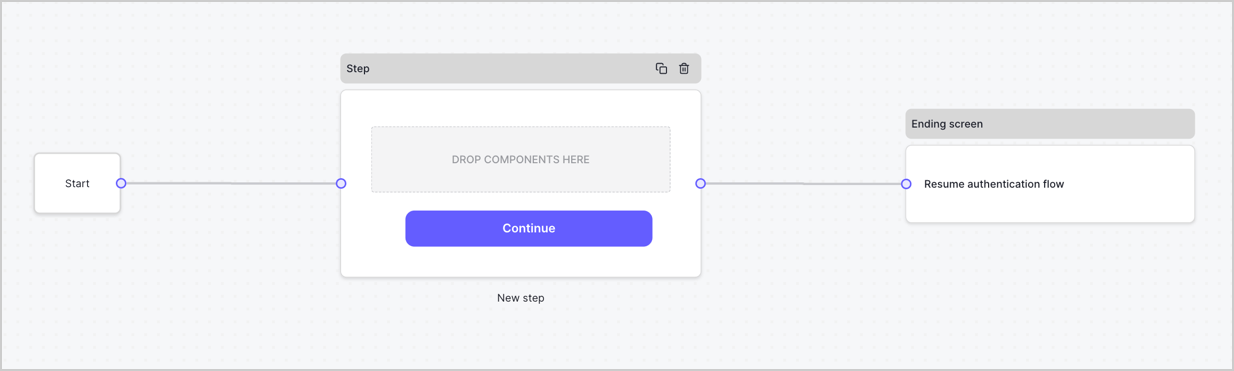
デフォルトでは、新しいフォームには Start ノード、Step ノード、Ending screen ノードが含まれます。
<Frame>
  <img src="https://mintcdn.com/docs-dev-feat-init-gt-translations/AcBWN86l7cA24wcQ/docs/images/cdy7uua7fh8z/2TZ9jSjgEcARFpULI6hz4R/a4319a1bd482f2ee5cc23100fdb2f42c/New-form-Forms-for-action-use-case.png?fit=max&auto=format&n=AcBWN86l7cA24wcQ&q=85&s=6a3bfd381941785615a3a8979f75d48a" alt="Dashboard > Forms > Use Cases > Form" data-og-width="1234" width="1234" data-og-height="371" height="371" data-path="docs/images/cdy7uua7fh8z/2TZ9jSjgEcARFpULI6hz4R/a4319a1bd482f2ee5cc23100fdb2f42c/New-form-Forms-for-action-use-case.png" data-optimize="true" data-opv="3" srcset="https://mintcdn.com/docs-dev-feat-init-gt-translations/AcBWN86l7cA24wcQ/docs/images/cdy7uua7fh8z/2TZ9jSjgEcARFpULI6hz4R/a4319a1bd482f2ee5cc23100fdb2f42c/New-form-Forms-for-action-use-case.png?w=280&fit=max&auto=format&n=AcBWN86l7cA24wcQ&q=85&s=bf0f92d94110edb4b874b91bb0e98464 280w, https://mintcdn.com/docs-dev-feat-init-gt-translations/AcBWN86l7cA24wcQ/docs/images/cdy7uua7fh8z/2TZ9jSjgEcARFpULI6hz4R/a4319a1bd482f2ee5cc23100fdb2f42c/New-form-Forms-for-action-use-case.png?w=560&fit=max&auto=format&n=AcBWN86l7cA24wcQ&q=85&s=2e1e0de292431110508a0cc9e342d6e2 560w, https://mintcdn.com/docs-dev-feat-init-gt-translations/AcBWN86l7cA24wcQ/docs/images/cdy7uua7fh8z/2TZ9jSjgEcARFpULI6hz4R/a4319a1bd482f2ee5cc23100fdb2f42c/New-form-Forms-for-action-use-case.png?w=840&fit=max&auto=format&n=AcBWN86l7cA24wcQ&q=85&s=230f131d16869cbde79b8598f5398e4c 840w, https://mintcdn.com/docs-dev-feat-init-gt-translations/AcBWN86l7cA24wcQ/docs/images/cdy7uua7fh8z/2TZ9jSjgEcARFpULI6hz4R/a4319a1bd482f2ee5cc23100fdb2f42c/New-form-Forms-for-action-use-case.png?w=1100&fit=max&auto=format&n=AcBWN86l7cA24wcQ&q=85&s=2eddce68293a63c174f95bd37418f105 1100w, https://mintcdn.com/docs-dev-feat-init-gt-translations/AcBWN86l7cA24wcQ/docs/images/cdy7uua7fh8z/2TZ9jSjgEcARFpULI6hz4R/a4319a1bd482f2ee5cc23100fdb2f42c/New-form-Forms-for-action-use-case.png?w=1650&fit=max&auto=format&n=AcBWN86l7cA24wcQ&q=85&s=50b62c46a234d62898f69d216e505578 1650w, https://mintcdn.com/docs-dev-feat-init-gt-translations/AcBWN86l7cA24wcQ/docs/images/cdy7uua7fh8z/2TZ9jSjgEcARFpULI6hz4R/a4319a1bd482f2ee5cc23100fdb2f42c/New-form-Forms-for-action-use-case.png?w=2500&fit=max&auto=format&n=AcBWN86l7cA24wcQ&q=85&s=1578043a5a0255d5f41140f905b00afa 2500w" />
</Frame>

<h3 id="configure-the-step-node">
  Step ノードを設定する
</h3>

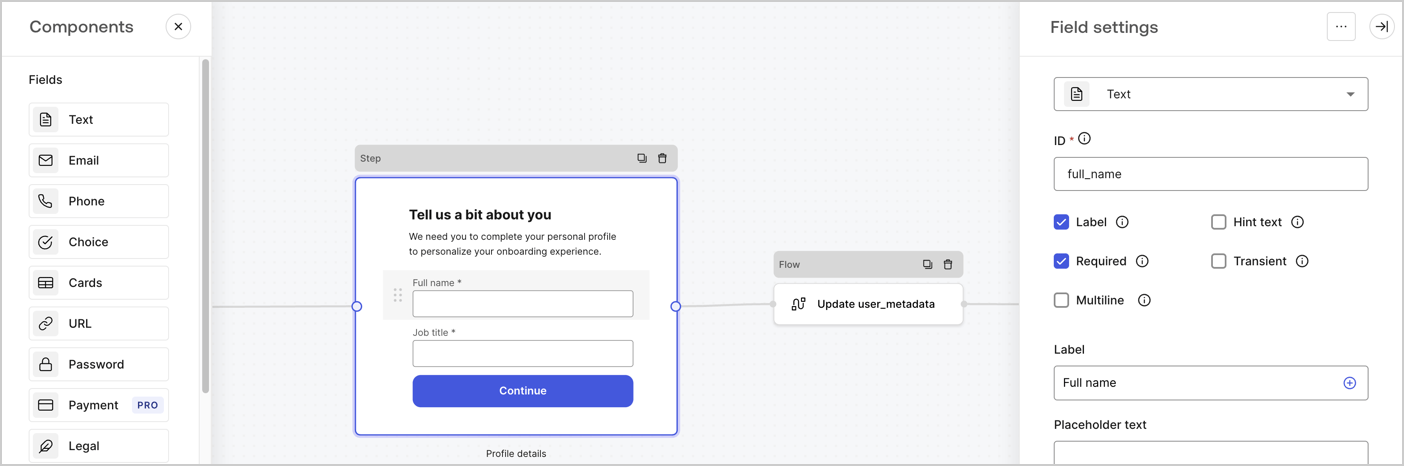
Step ノードは、ユーザーに表示される画面です。次の手順に従って Step ノードに [Fields](/docs/ja-jp/customize/forms/nodes-and-components) を追加し、ユーザーの氏名と役職を収集します。

1. **Components menu** から **Rich text** フィールドを **Step** ノードにドラッグします。

   * **Rich text**: カスタムメッセージを入力します。
   * **Save** を選択します。
2. **Text** フィールドを **Step** ノードにドラッグします。

   * **ID**: `full_name` と入力します。
   * **Label**: `Full name` と入力します。
   * **Label**: チェックボックスをオンにします。
   * **Required**: チェックボックスをオンにします。
   * **Save** を選択します。
3. **Text** フィールドを **Step** ノードにドラッグします。

   * **ID**: `job_title` と入力します。
   * **Label**: `Job title.` と入力します。
   * **Label**: チェックボックスをオンにします。
   * **Required**: チェックボックスをオンにします。
   * **Save** を選択します。
4. 保存するには **Publish** を選択します。
<Frame>
  <img src="https://mintcdn.com/docs-dev-feat-init-gt-translations/ga3rC1_4s-OF6Vr-/docs/images/cdy7uua7fh8z/6Kcn0ai9fsVsqHwZpTGByG/37cbf4ffee63a7010926b15f06dd20ac/custom-signup-step-node.png?fit=max&auto=format&n=ga3rC1_4s-OF6Vr-&q=85&s=338af151e612d2e4026283f06e26f18f" alt="Dashboard > Actions > Forms > Use Case Custom Signup Steps Step node" data-og-width="1404" width="1404" data-og-height="466" height="466" data-path="docs/images/cdy7uua7fh8z/6Kcn0ai9fsVsqHwZpTGByG/37cbf4ffee63a7010926b15f06dd20ac/custom-signup-step-node.png" data-optimize="true" data-opv="3" srcset="https://mintcdn.com/docs-dev-feat-init-gt-translations/ga3rC1_4s-OF6Vr-/docs/images/cdy7uua7fh8z/6Kcn0ai9fsVsqHwZpTGByG/37cbf4ffee63a7010926b15f06dd20ac/custom-signup-step-node.png?w=280&fit=max&auto=format&n=ga3rC1_4s-OF6Vr-&q=85&s=5eb305d58f0135c861d65ba73b185f99 280w, https://mintcdn.com/docs-dev-feat-init-gt-translations/ga3rC1_4s-OF6Vr-/docs/images/cdy7uua7fh8z/6Kcn0ai9fsVsqHwZpTGByG/37cbf4ffee63a7010926b15f06dd20ac/custom-signup-step-node.png?w=560&fit=max&auto=format&n=ga3rC1_4s-OF6Vr-&q=85&s=f29865439e26fd030fc54a926139d7a3 560w, https://mintcdn.com/docs-dev-feat-init-gt-translations/ga3rC1_4s-OF6Vr-/docs/images/cdy7uua7fh8z/6Kcn0ai9fsVsqHwZpTGByG/37cbf4ffee63a7010926b15f06dd20ac/custom-signup-step-node.png?w=840&fit=max&auto=format&n=ga3rC1_4s-OF6Vr-&q=85&s=7e566a8ddbd809f39e2d63fde1bed196 840w, https://mintcdn.com/docs-dev-feat-init-gt-translations/ga3rC1_4s-OF6Vr-/docs/images/cdy7uua7fh8z/6Kcn0ai9fsVsqHwZpTGByG/37cbf4ffee63a7010926b15f06dd20ac/custom-signup-step-node.png?w=1100&fit=max&auto=format&n=ga3rC1_4s-OF6Vr-&q=85&s=5820b88b3d90c23f5e0fc1ffcff6b1ce 1100w, https://mintcdn.com/docs-dev-feat-init-gt-translations/ga3rC1_4s-OF6Vr-/docs/images/cdy7uua7fh8z/6Kcn0ai9fsVsqHwZpTGByG/37cbf4ffee63a7010926b15f06dd20ac/custom-signup-step-node.png?w=1650&fit=max&auto=format&n=ga3rC1_4s-OF6Vr-&q=85&s=d51228d997ffe11c6c45ddbcf78e47a8 1650w, https://mintcdn.com/docs-dev-feat-init-gt-translations/ga3rC1_4s-OF6Vr-/docs/images/cdy7uua7fh8z/6Kcn0ai9fsVsqHwZpTGByG/37cbf4ffee63a7010926b15f06dd20ac/custom-signup-step-node.png?w=2500&fit=max&auto=format&n=ga3rC1_4s-OF6Vr-&q=85&s=1611d64e2d970424f483cd5abf854278 2500w" />
</Frame>

<h3 id="configure-the-flow-node">
  Flow ノードを設定する
</h3>

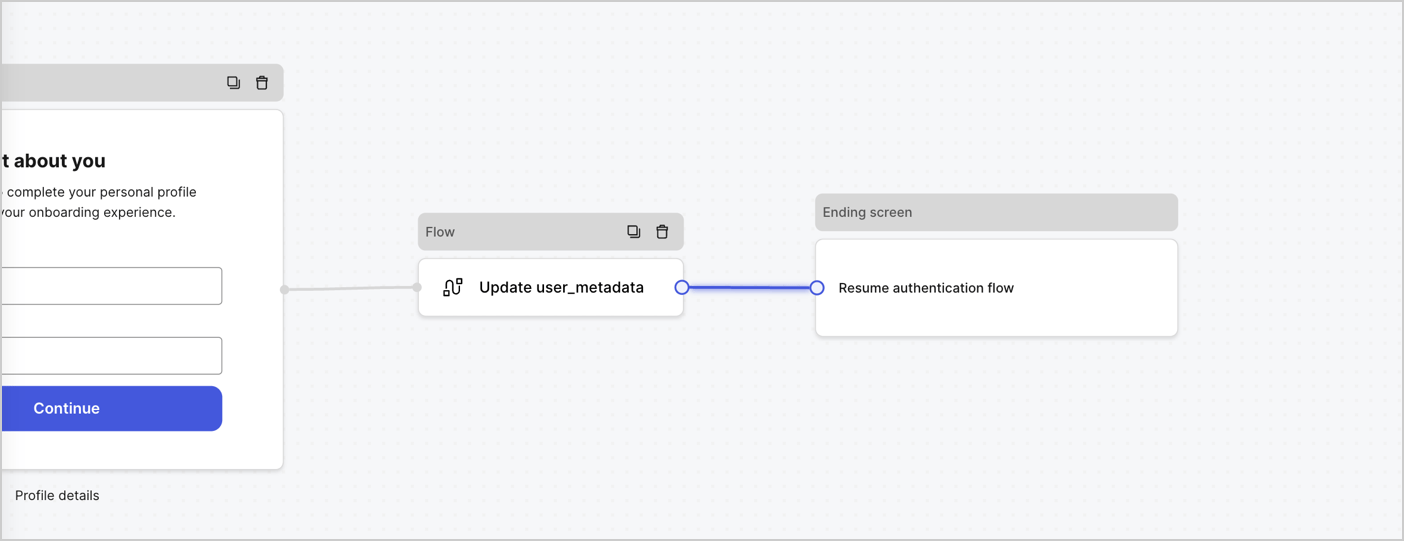
以下の手順に従って、`user_metadata` を更新し、認証フローを再開するために **Step** ノードの後に **Flow** ノードを追加します。

1. フォームエディターの下部で **Flow** を選択します。
2. **Step** ノードと **Ending Screen** ノードの間にある既存のリンクを削除します。
3. 新しい **Flow** > **Click to add a flow** > **Create a new flow.** を選択します。

   * **Name** フィールドに `Update user_metadata` と入力します。
   * **Create** を選択します。
   * **Save** を選択します。
4. 下図のように、**Flow** ノードを **Step** ノードと **Ending Screen** ノードに接続します。
5. 保存するには **Publish** を選択します。
<Frame>
  <img src="https://mintcdn.com/docs-dev-feat-init-gt-translations/pK24zKWLhA0dvqKX/docs/images/cdy7uua7fh8z/4nTdYdA2Hu5vK65smkdvJg/db3294ebc25a7c2636be96362a3ea56e/custom-signup-step-flow.png?fit=max&auto=format&n=pK24zKWLhA0dvqKX&q=85&s=980870d672d9ba5d3c8a7f91ed86c7f6" alt="Dashboard > Actions > Forms > Use Case Custom Signup Step Update User metadata flow" data-og-width="1404" width="1404" data-og-height="541" height="541" data-path="docs/images/cdy7uua7fh8z/4nTdYdA2Hu5vK65smkdvJg/db3294ebc25a7c2636be96362a3ea56e/custom-signup-step-flow.png" data-optimize="true" data-opv="3" srcset="https://mintcdn.com/docs-dev-feat-init-gt-translations/pK24zKWLhA0dvqKX/docs/images/cdy7uua7fh8z/4nTdYdA2Hu5vK65smkdvJg/db3294ebc25a7c2636be96362a3ea56e/custom-signup-step-flow.png?w=280&fit=max&auto=format&n=pK24zKWLhA0dvqKX&q=85&s=1e71fc0dee092f7136c511e2b7ea3a7c 280w, https://mintcdn.com/docs-dev-feat-init-gt-translations/pK24zKWLhA0dvqKX/docs/images/cdy7uua7fh8z/4nTdYdA2Hu5vK65smkdvJg/db3294ebc25a7c2636be96362a3ea56e/custom-signup-step-flow.png?w=560&fit=max&auto=format&n=pK24zKWLhA0dvqKX&q=85&s=abe66eebf86ac7f09dbab9a3b4b6c295 560w, https://mintcdn.com/docs-dev-feat-init-gt-translations/pK24zKWLhA0dvqKX/docs/images/cdy7uua7fh8z/4nTdYdA2Hu5vK65smkdvJg/db3294ebc25a7c2636be96362a3ea56e/custom-signup-step-flow.png?w=840&fit=max&auto=format&n=pK24zKWLhA0dvqKX&q=85&s=bc49b0f90e3353decb8e7dd34121b02a 840w, https://mintcdn.com/docs-dev-feat-init-gt-translations/pK24zKWLhA0dvqKX/docs/images/cdy7uua7fh8z/4nTdYdA2Hu5vK65smkdvJg/db3294ebc25a7c2636be96362a3ea56e/custom-signup-step-flow.png?w=1100&fit=max&auto=format&n=pK24zKWLhA0dvqKX&q=85&s=a9e6ae449e68eb311ba06d0a4235250c 1100w, https://mintcdn.com/docs-dev-feat-init-gt-translations/pK24zKWLhA0dvqKX/docs/images/cdy7uua7fh8z/4nTdYdA2Hu5vK65smkdvJg/db3294ebc25a7c2636be96362a3ea56e/custom-signup-step-flow.png?w=1650&fit=max&auto=format&n=pK24zKWLhA0dvqKX&q=85&s=9b48383ceedd6b71fa1e4199122582a0 1650w, https://mintcdn.com/docs-dev-feat-init-gt-translations/pK24zKWLhA0dvqKX/docs/images/cdy7uua7fh8z/4nTdYdA2Hu5vK65smkdvJg/db3294ebc25a7c2636be96362a3ea56e/custom-signup-step-flow.png?w=2500&fit=max&auto=format&n=pK24zKWLhA0dvqKX&q=85&s=cf740c79e41f514a3c894ab3426d0e62 2500w" />
</Frame>

以下の手順に従って、フローに Auth0 の Update user アクションを追加します。

1. **Flow** **Update user\_metadata** > **Edit flow** を選択し、新しいタブで Flow エディタを開きます。
2. StartAction の下にある **+** アイコンを選択して **Update user** Action を追加します。以下の項目を入力し、続行するには **Save** を選択します。

   * **Connection**: ドロップダウンから、M2M アプリケーションへの Vault 接続を選択します。

   * **User ID**: `{{context.user.user_id}}` と入力します。

   * **Body**: 次のコードをコピー＆ペーストして、`full_name` プロパティと `job_title` プロパティで `user_metadata` を更新します。

     ```json lines theme={null}
     {
       "user_metadata": {
         "full_name": "{{fields.full_name}}",
         "job_title": "{{fields.job_title}}"
       }
     }
     ```

   * **Save** を選択します。
3. 保存するには **Publish** を選択します。

<h2 id="retrieve-your-form-render-code">
  フォームのレンダリングコードを取得する
</h2>

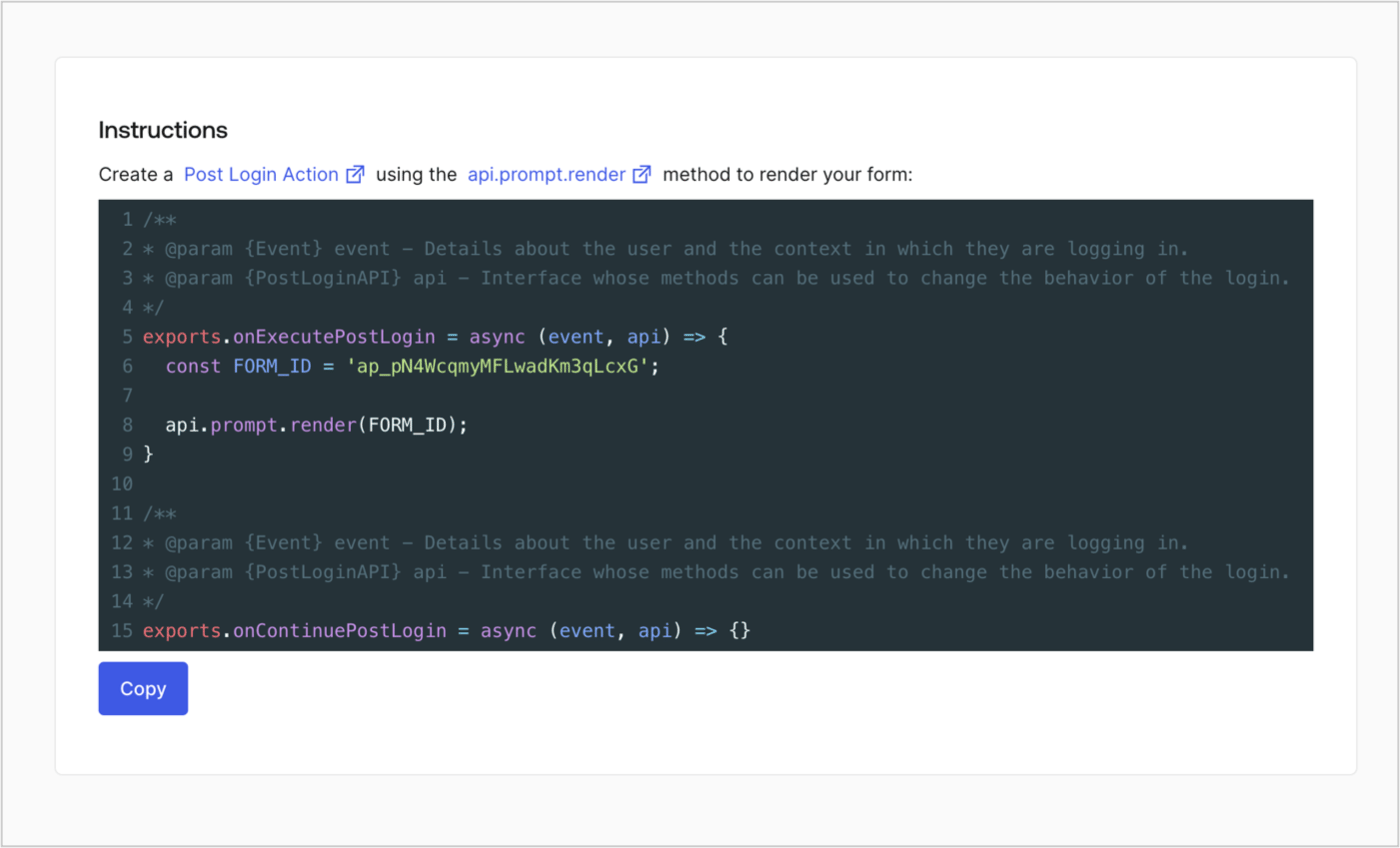
カスタムの Post Login Action でフォームを表示するためのフォームのレンダリングコードを取得するには、次の手順に従います。

* フォームエディターで、**`<> Render`** を選択します。
* **Copy** を選択します。
<Frame>
  <img src="https://mintcdn.com/docs-dev-feat-init-gt-translations/2ut5cR-lHY2UVI81/docs/images/cdy7uua7fh8z/2EIUzc539sq9lwoTKbjoJv/496a864c0fc44a782c9cadca119dbfb0/embed.png?fit=max&auto=format&n=2ut5cR-lHY2UVI81&q=85&s=c58280f0219735500bc5aa06b7a486f8" alt="Dashboard > Actions > Forms > Form > Embed" data-og-width="1400" width="1400" data-og-height="848" height="848" data-path="docs/images/cdy7uua7fh8z/2EIUzc539sq9lwoTKbjoJv/496a864c0fc44a782c9cadca119dbfb0/embed.png" data-optimize="true" data-opv="3" srcset="https://mintcdn.com/docs-dev-feat-init-gt-translations/2ut5cR-lHY2UVI81/docs/images/cdy7uua7fh8z/2EIUzc539sq9lwoTKbjoJv/496a864c0fc44a782c9cadca119dbfb0/embed.png?w=280&fit=max&auto=format&n=2ut5cR-lHY2UVI81&q=85&s=fc9bde66ccd8faca3250e0732d6b5248 280w, https://mintcdn.com/docs-dev-feat-init-gt-translations/2ut5cR-lHY2UVI81/docs/images/cdy7uua7fh8z/2EIUzc539sq9lwoTKbjoJv/496a864c0fc44a782c9cadca119dbfb0/embed.png?w=560&fit=max&auto=format&n=2ut5cR-lHY2UVI81&q=85&s=dc43ebccfce206094e2a59c90b1a46d1 560w, https://mintcdn.com/docs-dev-feat-init-gt-translations/2ut5cR-lHY2UVI81/docs/images/cdy7uua7fh8z/2EIUzc539sq9lwoTKbjoJv/496a864c0fc44a782c9cadca119dbfb0/embed.png?w=840&fit=max&auto=format&n=2ut5cR-lHY2UVI81&q=85&s=82ff98862cec1dbe8651f5e468315021 840w, https://mintcdn.com/docs-dev-feat-init-gt-translations/2ut5cR-lHY2UVI81/docs/images/cdy7uua7fh8z/2EIUzc539sq9lwoTKbjoJv/496a864c0fc44a782c9cadca119dbfb0/embed.png?w=1100&fit=max&auto=format&n=2ut5cR-lHY2UVI81&q=85&s=b474d89dfb7de3146e6251280d44b49c 1100w, https://mintcdn.com/docs-dev-feat-init-gt-translations/2ut5cR-lHY2UVI81/docs/images/cdy7uua7fh8z/2EIUzc539sq9lwoTKbjoJv/496a864c0fc44a782c9cadca119dbfb0/embed.png?w=1650&fit=max&auto=format&n=2ut5cR-lHY2UVI81&q=85&s=08659d93e88824f29d1f4664409fb587 1650w, https://mintcdn.com/docs-dev-feat-init-gt-translations/2ut5cR-lHY2UVI81/docs/images/cdy7uua7fh8z/2EIUzc539sq9lwoTKbjoJv/496a864c0fc44a782c9cadca119dbfb0/embed.png?w=2500&fit=max&auto=format&n=2ut5cR-lHY2UVI81&q=85&s=4f15acc7d76240608f9ac651944a264f 2500w" />
</Frame>

<h2 id="create-a-post-login-action">
  Post Login Action を作成する
</h2>

次の手順に従って、フォームを表示する post-login Action を作成します。

1. **Auth0 Dashboard > Actions > Flows > Login** に移動します。
2. **+** アイコンを選択し、**Build from scratch** を選択します。

   * **Name**: `Render Additional Signup Form` と入力します。
   * **Trigger**: `Login / Post Login` を選択します。
   * **Runtime**: 推奨バージョンを選択します。
3. **Create** を選択します。

post-login Action を設定するには、次の手順を実行します。

1. Code editor から既存のコードを削除します。
2. フォームを表示するコードを Code editor に貼り付けます。
3. フォームを表示する条件ロジックを定義するようにコードを編集します。

   ```javascript lines theme={null}
   /**
   * @param {Event} event - ユーザーと、ユーザーがログインしている状況に関する詳細。
   * @param {PostLoginAPI} api - ログインの動作を変更するためのメソッドを利用できるインターフェース。
   */
   exports.onExecutePostLogin = async (event, api) => {
     const FORM_ID = 'REPLACE_WITH_YOUR_FORM_ID';

     if (
       !event.user.user_metadata.full_name &&
       !event.user.user_metadata.job_title
     ) {
       api.prompt.render(FORM_ID);
     }
   }

   exports.onContinuePostLogin = async (event, api) => { }
   ```

   <Callout icon="file-lines" color="#0EA5E9" iconType="regular">
     上記のコード例では、ユーザーの user metadata に full\_name プロパティと job\_title プロパティがない場合にフォームが表示されます。
   </Callout>
4. **Deploy** を選択します。
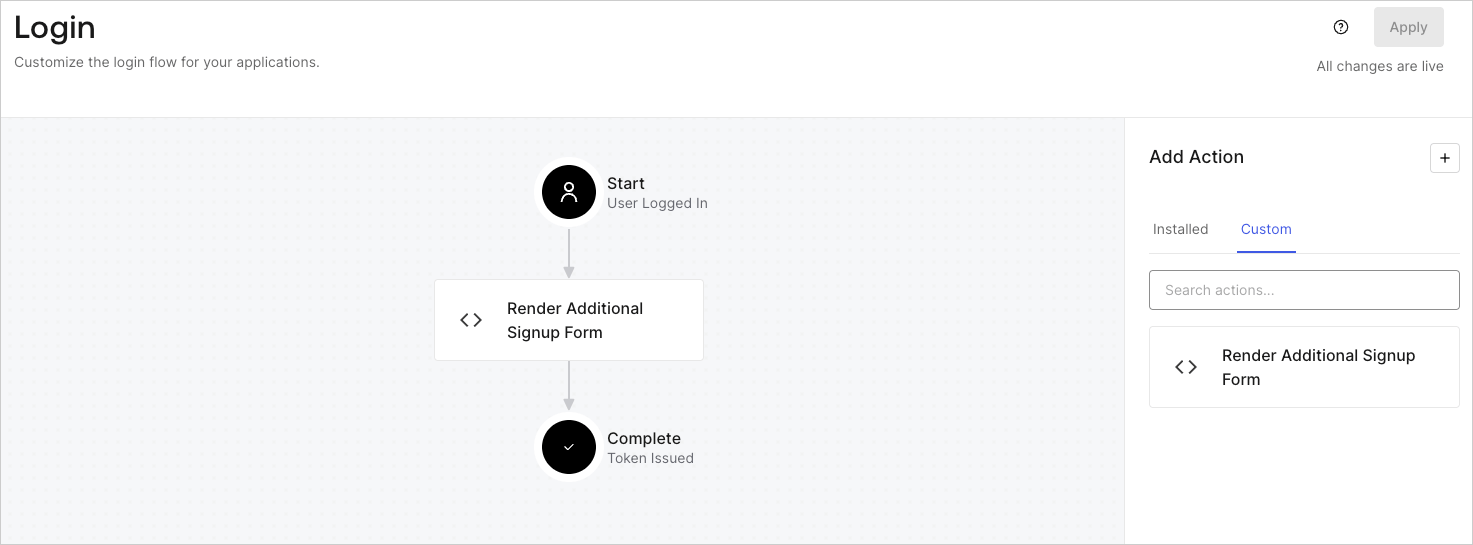
5. **Render Additional Signup Form** Action を **Login** フローにドラッグ＆ドロップします。

   <Frame>
     <img src="https://mintcdn.com/docs-dev-feat-init-gt-translations/2ut5cR-lHY2UVI81/docs/images/cdy7uua7fh8z/1WBOicIOcH98hKj6Lq9HF2/4951e30a0cc08c7c5daa0116eaa17e11/Screenshot_2024-03-01_at_15.48.00.png?fit=max&auto=format&n=2ut5cR-lHY2UVI81&q=85&s=15db0a2ec6331950e0e8c427b327fbee" alt="Dashboard > Forms > Use Cases Custom Signup Steps Login Flow" data-og-width="1473" width="1473" data-og-height="545" height="545" data-path="docs/images/cdy7uua7fh8z/1WBOicIOcH98hKj6Lq9HF2/4951e30a0cc08c7c5daa0116eaa17e11/Screenshot_2024-03-01_at_15.48.00.png" data-optimize="true" data-opv="3" srcset="https://mintcdn.com/docs-dev-feat-init-gt-translations/2ut5cR-lHY2UVI81/docs/images/cdy7uua7fh8z/1WBOicIOcH98hKj6Lq9HF2/4951e30a0cc08c7c5daa0116eaa17e11/Screenshot_2024-03-01_at_15.48.00.png?w=280&fit=max&auto=format&n=2ut5cR-lHY2UVI81&q=85&s=9de47d0ee8aca9afabd4d853b9557a78 280w, https://mintcdn.com/docs-dev-feat-init-gt-translations/2ut5cR-lHY2UVI81/docs/images/cdy7uua7fh8z/1WBOicIOcH98hKj6Lq9HF2/4951e30a0cc08c7c5daa0116eaa17e11/Screenshot_2024-03-01_at_15.48.00.png?w=560&fit=max&auto=format&n=2ut5cR-lHY2UVI81&q=85&s=48b7fd6819f70ab689ee84f2066f2f1c 560w, https://mintcdn.com/docs-dev-feat-init-gt-translations/2ut5cR-lHY2UVI81/docs/images/cdy7uua7fh8z/1WBOicIOcH98hKj6Lq9HF2/4951e30a0cc08c7c5daa0116eaa17e11/Screenshot_2024-03-01_at_15.48.00.png?w=840&fit=max&auto=format&n=2ut5cR-lHY2UVI81&q=85&s=119fba0eb62a1ca39c2abffbdf447e0c 840w, https://mintcdn.com/docs-dev-feat-init-gt-translations/2ut5cR-lHY2UVI81/docs/images/cdy7uua7fh8z/1WBOicIOcH98hKj6Lq9HF2/4951e30a0cc08c7c5daa0116eaa17e11/Screenshot_2024-03-01_at_15.48.00.png?w=1100&fit=max&auto=format&n=2ut5cR-lHY2UVI81&q=85&s=01d25037e3484bcd3ce2d8d3bcd90f7d 1100w, https://mintcdn.com/docs-dev-feat-init-gt-translations/2ut5cR-lHY2UVI81/docs/images/cdy7uua7fh8z/1WBOicIOcH98hKj6Lq9HF2/4951e30a0cc08c7c5daa0116eaa17e11/Screenshot_2024-03-01_at_15.48.00.png?w=1650&fit=max&auto=format&n=2ut5cR-lHY2UVI81&q=85&s=b1cea87cc8af853f9da5eae4e2618ac1 1650w, https://mintcdn.com/docs-dev-feat-init-gt-translations/2ut5cR-lHY2UVI81/docs/images/cdy7uua7fh8z/1WBOicIOcH98hKj6Lq9HF2/4951e30a0cc08c7c5daa0116eaa17e11/Screenshot_2024-03-01_at_15.48.00.png?w=2500&fit=max&auto=format&n=2ut5cR-lHY2UVI81&q=85&s=6c9888fd808398e87b8555a534ecb844 2500w" />
   </Frame>
6. **Apply** を選択します。

<h3 id="test-implementation">
  実装をテストする
</h3>

次の手順で実装をテストします。

* 新しいユーザーとしてアプリケーションにサインアップします。
* Login フロー内の post-login Action によってフォームが表示され、情報の入力が求められます。
* **<Tooltip tip="Auth0 Dashboard: サービスを設定するための Auth0 の主要製品。" cta="用語集を見る" href="/docs/ja-jp/glossary?term=Auth0+Dashboard">Auth0 Dashboard</Tooltip> > User Management > Users** を選択し、新しいユーザーを見つけて、属性 `full_name` と `job_title` に追加のサインアップ手順で入力した情報が含まれていることを確認します。