> ## Documentation Index
> Fetch the complete documentation index at: https://docs-dev-feat-init-gt-translations.mintlify.site/llms.txt
> Use this file to discover all available pages before exploring further.
> System Center Operations Manager(SCOM)で AD/LDAP Connector を監視する方法について説明します。
# System Center Operations Manager で AD/LDAP Connector を監視する
Auth0 AD/LDAP Connector は、Windows ベースのマシン上でサービスとして実行できます。
このサービスのステータスは、他のサービスと同様に System Center を使用して監視できます。
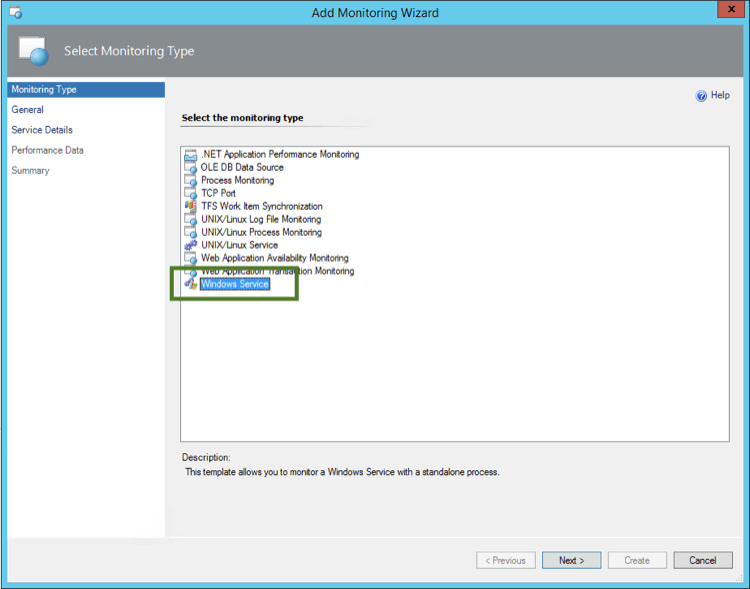
1. **Add Monitoring Wizard** を開き、**Monitoring Type: Windows Service** を選択します。
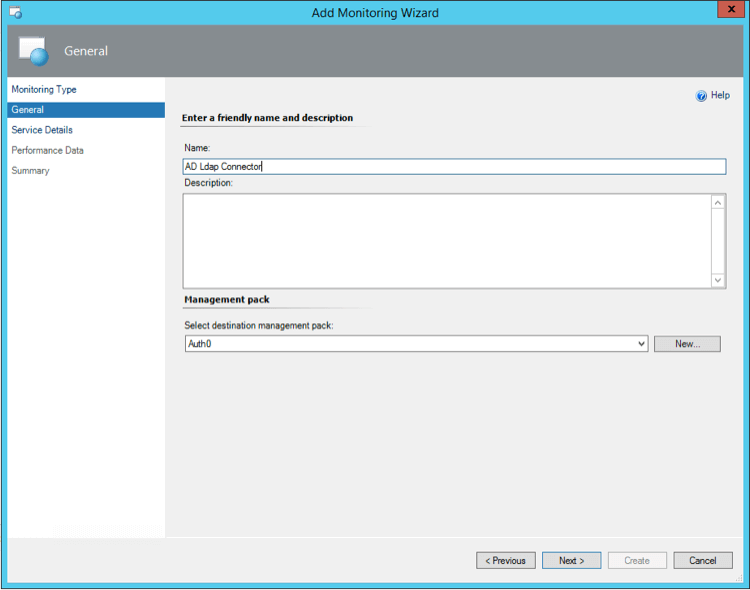
 2. 名前と説明を入力します。
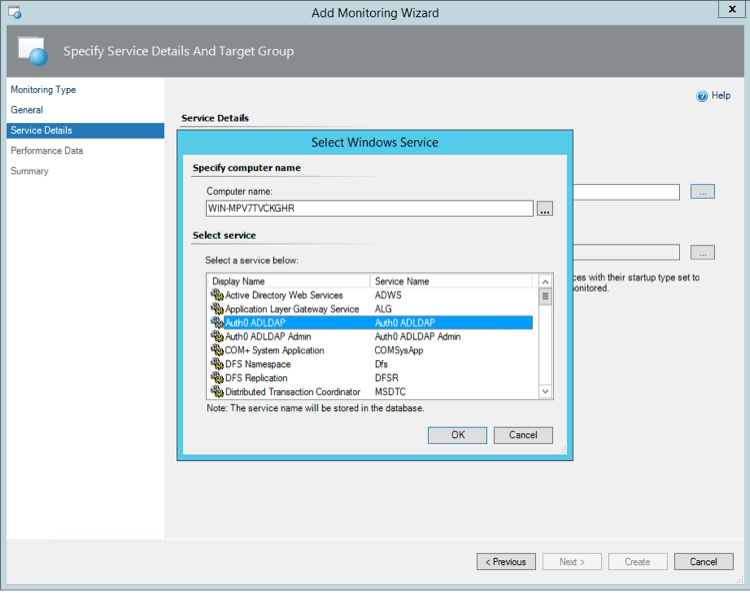
 3. AD/LDAP Connector がインストールされているサーバーを選択し、**Auth0 ADLDAP** を選択します。
 4. **CPU** と **Memory limits** のしきい値を設定します。たとえば、アラートを発生させるしきい値として、CPU 使用率 10%、RAM 200MB が適切です。
また、エンドツーエンドの認証を監視するために、合成トランザクションを設定することをお勧めします。
詳しくは、[SCOM を使用して Auth0 を監視する](/docs/ja-jp/deploy-monitor/monitor/monitor-using-scom) を参照してください。
4. **CPU** と **Memory limits** のしきい値を設定します。たとえば、アラートを発生させるしきい値として、CPU 使用率 10%、RAM 200MB が適切です。
また、エンドツーエンドの認証を監視するために、合成トランザクションを設定することをお勧めします。
詳しくは、[SCOM を使用して Auth0 を監視する](/docs/ja-jp/deploy-monitor/monitor/monitor-using-scom) を参照してください。
詳細はこちら
* [System Center Operations Manager を使用した Auth0 の監視](/docs/ja-jp/deploy-monitor/monitor/monitor-using-scom)